
 Sample images
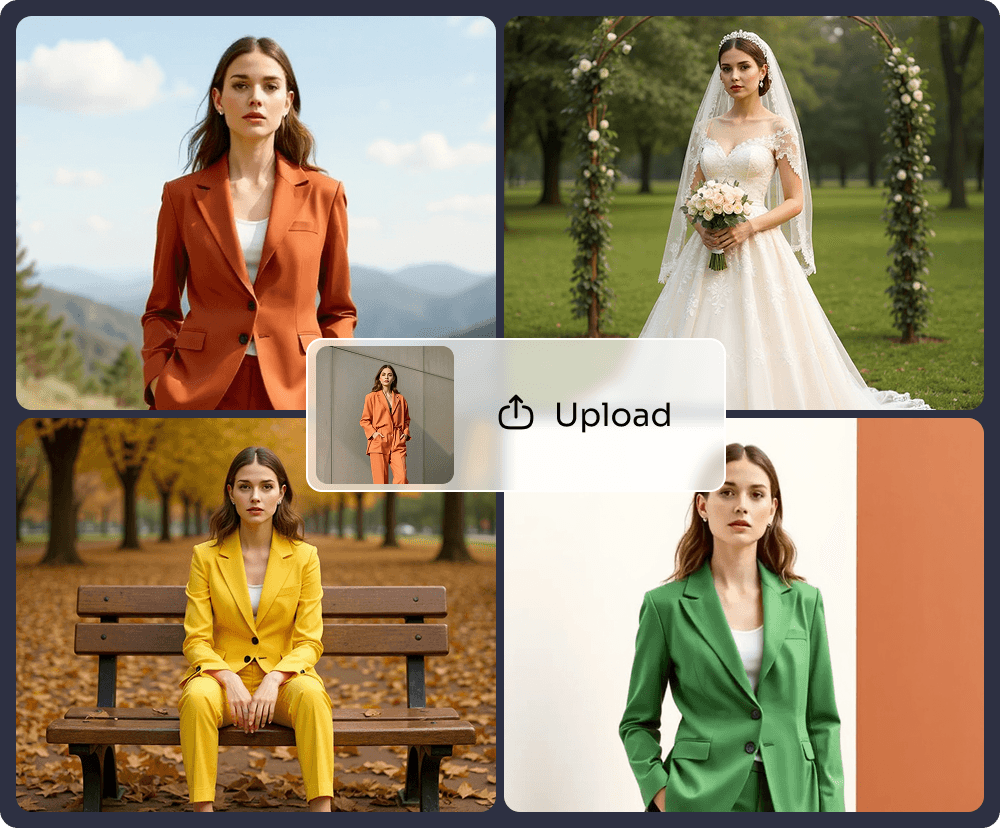
Person + place
Drop a subject into a new location with matching light and perspective.
Use this recipeUpload two or more images, describe how they should come together, and let a multi-reference model blend them into one new picture. Put a person in a new place, a product in a scene, or one image’s style onto another.
 Image 1
 Image 2
 Result
Opens Create Image with Google Nano Banana 2 selected. Add your images there. Sign-up required; free credits for new accounts.
Start from a recipe, swap in your own images, and adjust the prompt until the blend feels right.
Sample imagesDrop a subject into a new location with matching light and perspective.
Use this recipe Sample images

 Sample images
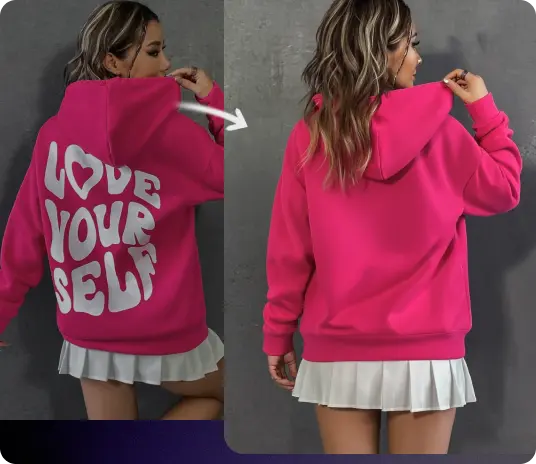
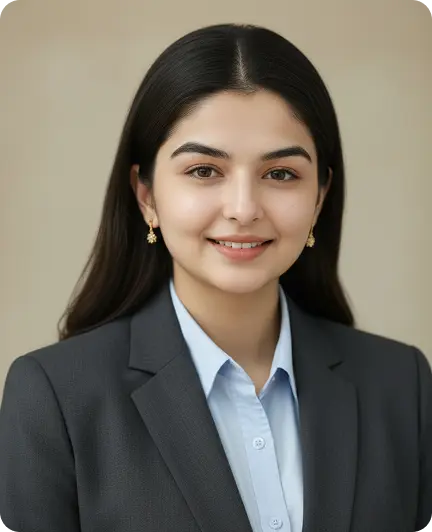
 Sample images

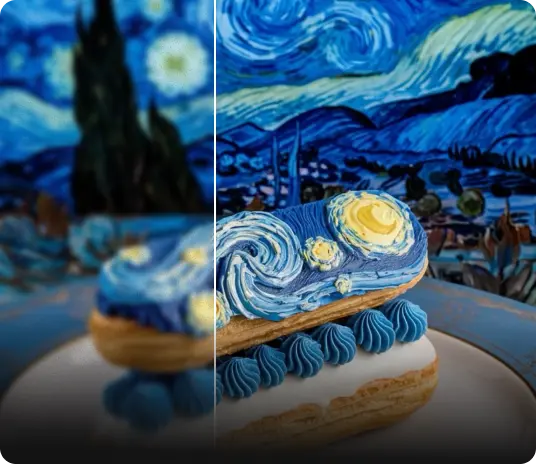
Three steps from separate pictures to one composition.
Add two or more reference images in Create Image. Use clear, well-lit pictures you own or have permission to use.
Say what to take from each image and how they should fit together. On models that support tags, refer to them as @Image1, @Image2.
Compare a few results, then change one thing at a time: placement, lighting, scale or style.
Descriptions are from Pixara’s model picker. What a reference preserves varies by model, so try the same prompt on two models and compare.

Described in Pixara’s picker as supporting multi-image composition.
Try this model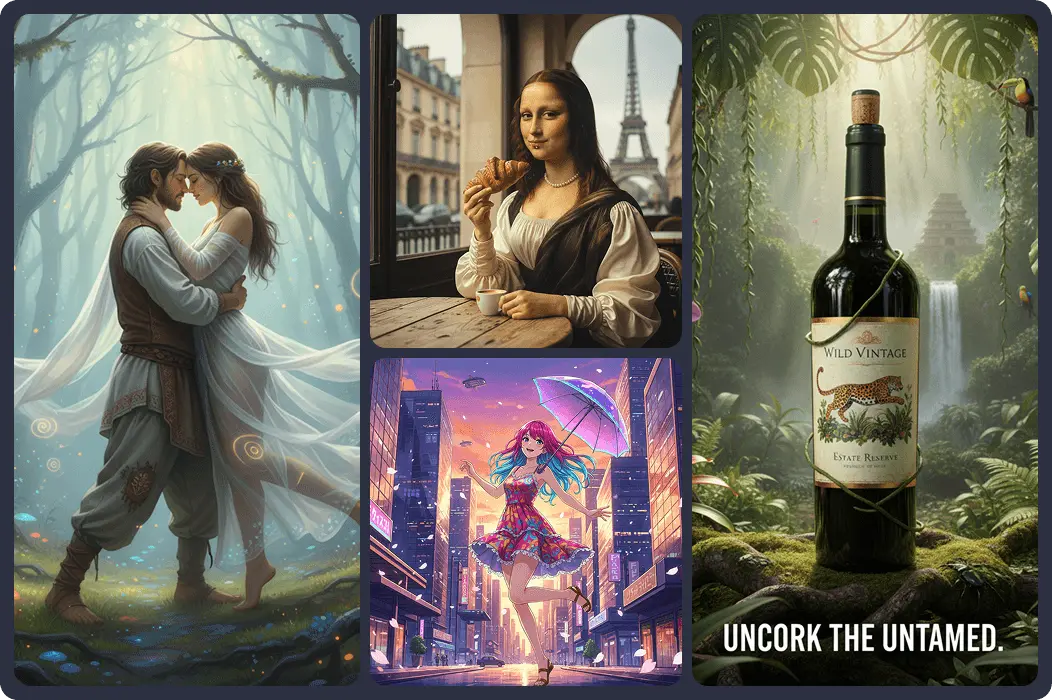
Lets you call references in the prompt as @Image1, @Image2 and so on.
Try this model
Described as handling region-precise edits and references.
Try this model
Production-grade model with multi-reference character and style control.
Try this model“The jacket from @Image1, the street from @Image2” works better than “mix these”.
Say which image is the hero and which one is the setting or the style.
Ask for consistent lighting direction, shadows and camera angle so the blend looks real.
Clean backgrounds and one subject per image are easier for the model to separate.
Too vague
“Combine these two pictures”
Clearer
“Place the ceramic mug from @Image1 on the wooden café table in @Image2, morning window light from the left, soft shadow, shallow depth of field, 4:5 crop.”
Try this promptPlace products in seasonal or lifestyle scenes for campaigns and listings concepts.

Create eye-catching composites for posts, thumbnails and stories.
Blend references into one direction before a shoot or a design sprint.
Mash up styles, worlds and characters into something new.
Use images you own or have permission to use. Don’t combine someone’s likeness into a scene without their consent, and don’t create misleading or deceptive images of real people. Free and Starter generations are public, so avoid uploading private or confidential material.
Upload your pictures, describe the blend, and create a new image in minutes.
Start combining for freeSign-up required. Free credits for new accounts; free use isn’t unlimited.