
AI video generation has reached a point where creating a good looking clip is no longer the only thing that matters. Creators, marketers, and production teams also need to know how much each generation costs, how many attempts their subscription can support, which models are available, and whether they can use the finished videos for commercial projects.
That is where Luma Dream Machine pricing deserves a closer look. Luma has developed its platform beyond a straightforward text to video generator, bringing its own video models together with image generation, third party AI models, editing tools, and creative workflows powered by Luma Agents.
For someone creating occasional social media clips, a $30 monthly subscription might feel reasonable. For a marketing agency generating dozens of product videos, campaign variations, and cinematic sequences every week, the same subscription could run out of credits much sooner than expected. The difference comes down to the models you choose, the resolution you need, the length of your clips, and how many attempts it takes to get a publishable result.
The luma ai dream machine pricing structure is particularly worth examining because the platform now lists specific credit costs for individual models and actions. That gives users a way to estimate their production capacity, although understanding the credit table requires a little more work than simply comparing monthly subscription prices.
This breakdown covers the available plans, the free tier question, Ray3 and Ray3.2 generation costs, the latest model options listed in Luma's pricing information, and how the platform compares with alternatives such as Runway, Kling, Veo, and Pixara.
Luma Dream Machine Pricing: How Much Does It Cost in 2026?

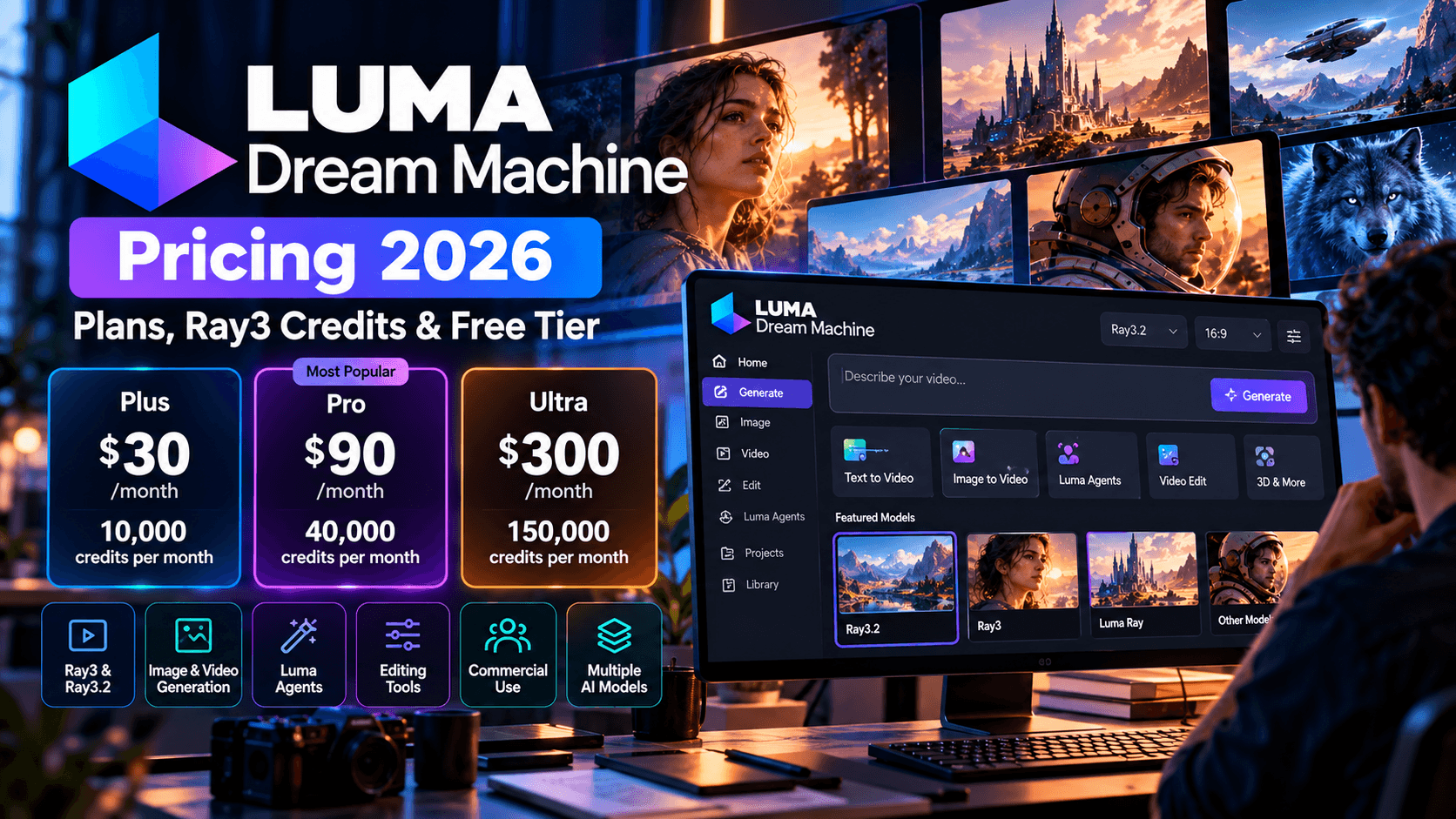
Luma's current pricing page lists three individual subscriptions, Plus, Pro, and Ultra, alongside Team and Enterprise plans for organizations. The platform also promotes access to Luma's own models and third party image and video generators, so a subscription can support several types of creative work rather than video generation alone.
Here is the current monthly pricing at a glance.
Plus
- Price: $30/month
- Credits: 10,000 credits per month
The entry level paid subscription includes Luma and third party image and video models, commercial use, and editing access for guest collaborators.
Pro
- Price: $90/month
- Credits: 40,000 credits per month
Includes all Plus features, with four times the usage allowance for Luma Agents compared with the base level.
Ultra
- Price: $300/month
- Credits: 150,000 credits per month
Includes all Pro features, with 15 times the usage allowance for Luma Agents compared with the base level.
Team
- Price: Custom pricing
Includes team member management, project organization, team wide sharing, usage analytics, shared team credits, and single sign on.
Enterprise
- Price: Custom pricing
Includes all Team features, plus enterprise commitments, dedicated education and training, and custom fine tuning.
Custom pricing
Adds enterprise commitments, dedicated education and training, and custom fine tuning to the Team offering.
Source: Official Luma pricing page. Monthly prices and credit allowances reflect the supplied pricing information. Confirm the checkout page before subscribing.
Does annual billing make Luma cheaper?
Yes. Luma advertises savings of up to 20% with yearly billing. The annual prices displayed for the three individual plans are $300 for Plus, $900 for Pro, and $3,000 for Ultra, equivalent to $25, $75, and $250 per month when averaged across the year.
Plus
- Monthly billing: $30/month
- Annual billing: $25/month, billed at $300 per year
- Annual saving: $60
Pro
- Monthly billing: $90/month
- Annual billing: $75/month, billed at $900 per year
- Annual saving: $180
Ultra
- Monthly billing: $300/month
- Annual billing: $250/month, billed at $3,000 per year
- Annual saving: $600
Luma advertises savings of up to 20% with yearly billing. Annual subscriptions are most suitable for creators and teams who expect to use the platform consistently throughout the year.
The annual option makes more sense for creators who already know they will use the platform throughout the year. If you are still figuring out how well Ray3 handles your prompts, product shots, or animation style, monthly billing gives you more flexibility to test the service before committing to twelve months.
Recommended Guides:
- 9 Best AI Tools of 2026 That Are Changing Content Creation, Business, and Education
- 10 Best HeyGen Alternatives for AI Avatar and Video Creation in 2026
- Step-by-Step Guide to Seedance AI Lip Sync Tool
- 10 Best Luma AI Alternatives for AI Video and 3D Content Creation in 2026
- Midjourney vs Nano Banana: Which AI Image Generator Is Better for Professional Creators?
- Best AI MCP Agents For Solo Content Creators & Design Studios
What Does Each Luma Dream Machine Plan Include?

The monthly price only tells part of the story. Your choice should depend on how many generations you expect to produce, how often you need to use Luma Agents, and whether the work is personal experimentation or paid commercial production.
1. Luma Plus: $30 per month
Plus is the logical starting point for creators who want access to a broad selection of AI models without paying for the larger usage allowances available on higher tiers.
The plan includes 10,000 monthly credits, access to Luma and third party image and video models, commercial use, and editing access for guest collaborators. This combination can suit freelance marketers, solo content creators, ecommerce operators, and small businesses producing visual assets for campaigns.
Consider someone creating short product advertisements. They might generate a product image, animate it with Ray3, produce alternative scenes with a third party model, and prepare different visual versions for social media. Plus gives them a shared credit pool for eligible creative operations, although the amount consumed depends on the model and output settings.
The important thing is to calculate your expected usage before assuming 10,000 credits will last all month. A large number of economical draft generations may fit comfortably within the allowance, while repeated 1080p renders, HDR outputs, video modifications, and expensive third party models can consume it quickly.
Who should choose Plus?
- Freelancers producing occasional client videos and images.
- Content marketers creating social media assets, product visuals, and campaign concepts.
- Small ecommerce businesses experimenting with AI generated advertising.
- Creators who want commercial use rights without immediately committing to a $90 monthly subscription.
For most individual users, this is the sensible plan to test first, provided the available credit allowance fits their intended production volume.
2. Luma Pro: $90 per month
Pro costs three times as much as Plus, increasing the monthly allowance from 10,000 to 40,000 credits. It also provides four times the usage with Luma Agents, making it more relevant to creators who rely on larger or more frequent AI assisted workflows.
The difference matters when your work extends beyond making one clip at a time. Imagine a marketing team preparing a campaign with several products, multiple visual concepts, alternate aspect ratios, and a series of connected promotional assets. That workload may require a substantial number of image generations, video drafts, modifications, and final renders.
Pro gives you more room to handle those tasks before running out of monthly credits. Its larger allowance can also make experimentation more practical, since you have more capacity to test different prompts and models.
However, a higher credit allowance does not guarantee four times as many finished videos in every situation. Credit consumption varies considerably between models and resolutions. A five second Ray3 draft costs far less than a five second 1080p output, so two creators on the same subscription may get very different amounts of usable content.
Who should choose Pro?
- Freelancers handling several recurring client projects.
- Small agencies producing visual content every week.
- Marketing teams that need multiple campaign variations.
- Creators who regularly use Luma Agents to coordinate larger creative tasks.
If you are repeatedly exhausting Plus before the end of the billing cycle, Pro is worth considering. If your workload is occasional, paying an extra $60 each month may not deliver enough additional value.
3. Luma Ultra: $300 per month
Ultra is aimed at high volume production. It includes 150,000 monthly credits and 15 times the usage with Luma Agents compared with the base allowance. It also carries the features available on the lower individual plans.
At this level, the question becomes less about occasional AI experimentation and more about maintaining a regular creative pipeline. An agency might be generating product imagery, campaign storyboards, multiple video concepts, and assets for several clients at the same time.
The larger credit pool gives that team considerably more room to work. It can support more drafts, more model comparisons, and more production variations, provided those activities remain within the plan's usage rules.
Still, $300 a month is a serious expense for an individual creator. It is difficult to justify if you only need a few polished clips each month. Before upgrading, estimate the cost of your usual workflow, including discarded generations and post production tasks, then compare that figure with your expected output.
Who should choose Ultra?
- Creative agencies managing multiple active campaigns.
- Production teams that need high monthly generation volume.
- Businesses creating large collections of product visuals and video advertisements.
- Teams using Luma Agents frequently to coordinate complex creative projects.
Ultra makes the most sense when the platform is already part of your production process and its monthly capacity is being put to regular use.
4. Luma Team and Enterprise: Custom pricing
The Team and Enterprise plans are designed for organizations that need more than an individual subscription. Their value lies in collaboration, administration, and organizational support, rather than simply giving one person a larger credit allowance.
Team includes member management, shared team credits, project organization, usage analytics, team wide sharing, and single sign on. Enterprise adds dedicated education and training, custom fine tuning, and enterprise commitments.
These features become useful when several people work on the same campaigns. A team may need to organize projects by client, monitor how credits are being consumed, manage access for collaborators, and maintain a consistent workflow across departments.
For larger brands, enterprise level support and customization can also matter more than the price of an individual subscription. Since these plans use custom pricing, businesses should contact Luma directly to discuss their requirements and obtain a quote.
Does Luma Dream Machine Have a Free Tier in 2026?

This is one of the most important questions to settle before subscribing.
Luma's current pricing page presents Plus, Pro, and Ultra as its individual paid plans, followed by Team and Enterprise. It does not list a permanent free subscription alongside those plans. However, Luma's support documentation describes a limited free experience for image creation and Ray3.14 draft video generation.
That means the safest answer is that limited free access has been documented, but you should not assume it provides a permanent allowance of full quality video generations. Availability and the exact limits can depend on the current product and account offering.
The free experience is useful for testing the interface, seeing how prompts are interpreted, and getting a feel for the platform before spending money. It is less suitable for anyone who needs predictable output volume, unrestricted commercial rights, or production ready video at higher resolutions.
Before treating a free generation as suitable for a client project, check the current terms for watermarks, permitted usage, resolution, and any limits on downloads.
For creators who need regular commercial production, Plus is the clearest starting point in Luma's current published subscription structure. The free experience is best treated as an opportunity to test the platform, not as a dependable long term production budget.
Luma Ray3 Pricing and Credits Explained
Luma's current video model is Ray3.2, released in May 2026. Earlier versions, including Ray3 and Ray3.14, remain useful when discussing the platform's development and the pricing table supplied for this article, but Ray3.2 is the version to pay attention to when evaluating Luma's current video generation capabilities.
Ray3.2 supports text to video, image to video, video editing, video extension, and reframing. It also supports multi keyframe direction, HDR output, and EXR export for professional post production. These features make it relevant to creators who need more control over how a shot develops, rather than simply generating a short animation from a prompt.
The pricing structure can look complicated at first because the platform charges different amounts depending on the operation, resolution, duration, and dynamic range. A five second draft and a ten second HDR production render can consume very different amounts of credits.
What do Luma credits mean?
Credits are the platform's internal usage currency. Each paid subscription includes a monthly allocation, and each generation or editing operation deducts credits according to its listed rate.
Think of credits as a production budget. You spend part of that budget on creating a clip, another portion on modifying existing footage, and potentially more on upscaling or preparing the output for a different aspect ratio.
The useful part is that Luma publishes costs for individual operations. You can calculate an estimated monthly output before subscribing, rather than relying entirely on a vague promise of how much content a plan can generate.
There are three things to remember when calculating your costs:
- Resolution affects your budget. A 1080p generation can cost substantially more than a 360p or 540p output.
- Duration matters. Some video operations are priced per five or ten second generation, while others charge per second of footage.
- Finishing work consumes credits too. Video modification, reframing, HDR processing, and upscaling can add to the cost of producing a finished asset.
Luma's billing policy also states that unused subscription credits expire at the end of the applicable billing cycle, rather than carrying over to the following month. Failed generations are automatically refunded to the credit balance.
That last point is useful for anyone concerned about wasting credits on a failed generation. It does not mean every unsatisfactory result qualifies for a refund, though. A generation that completes successfully but produces a disappointing animation is different from a failed job.
Ray3.2 generation costs: SDR, HDR, and HDR plus EXR
The supplied Luma pricing table lists three output options for Ray3.2: standard dynamic range (SDR), HDR at twice the base credit cost, and HDR plus EXR at three times the base cost. It also lists an additional 30 credits for generation without keyframes.
HDR is useful when you need richer highlight and shadow information for a more cinematic image. EXR export is particularly relevant to professional editors and visual effects artists who want a high dynamic range image sequence or footage that can be handled in a grading workflow.
The following calculations use the supplied pricing figures, with the HDR and EXR multipliers applied to the SDR base rate.
360p Video Generation
- SDR, 5 seconds: 20 credits
- SDR, 10 seconds: 60 credits
- HDR, 5 seconds: 40 credits
- HDR plus EXR, 5 seconds: 60 credits
540p Video Generation
- SDR, 5 seconds: 50 credits
- SDR, 10 seconds: 150 credits
- HDR, 5 seconds: 100 credits
- HDR plus EXR, 5 seconds: 150 credits
720p Video Generation
- SDR, 5 seconds: 100 credits
- SDR, 10 seconds: 300 credits
- HDR, 5 seconds: 200 credits
- HDR plus EXR, 5 seconds: 300 credits
1080p Video Generation
- SDR, 5 seconds: 400 credits
- SDR, 10 seconds: 1,200 credits
- HDR, 5 seconds: 800 credits
- HDR plus EXR, 5 seconds: 1,200 credits
Pricing note: The supplied rate card lists five and ten second generation costs. HDR figures above apply the stated 2× multiplier, and HDR plus EXR applies the stated 3× multiplier to the five second SDR cost. Confirm the exact current Ray3.2 rate in the live interface before production budgeting.
Notice how quickly the costs rise at higher resolutions. A five second 1080p SDR clip costs 400 credits in the supplied table, while the same duration at 540p costs 50 credits.
That is an eightfold difference in credit consumption. For someone producing many campaign drafts, it makes sense to experiment at a lower resolution and reserve expensive outputs for shots that are ready for final delivery.
How many Ray3 videos can you generate with each subscription?
Let's put those numbers into a practical context. The estimates below divide each plan's monthly credit allocation by the listed generation cost. They assume every credit is available for Ray3 video generation, with no credits spent on images, other models, modifications, or upscaling.
Estimated monthly output
Select a plan and resolution to see the theoretical maximum based on the supplied credit rates.
Plus: 10,000 Credits per Month
- 360p, 5 second clips: Up to 500 clips
- 540p, 5 second clips: Up to 200 clips
- 720p, 5 second clips: Up to 100 clips
- 1080p, 5 second clips: Up to 25 clips
Pro: 40,000 Credits per Month
- 360p, 5 second clips: Up to 2,000 clips
- 540p, 5 second clips: Up to 800 clips
- 720p, 5 second clips: Up to 400 clips
- 1080p, 5 second clips: Up to 100 clips
Ultra: 150,000 Credits per Month
- 360p, 5 second clips: Up to 7,500 clips
- 540p, 5 second clips: Up to 3,000 clips
- 720p, 5 second clips: Up to 1,500 clips
- 1080p, 5 second clips: Up to 375 clips
25 clips
10,000 credits available ÷ 400 credits per clip. This is a mathematical maximum, not a guarantee of finished, usable videos.
These figures help illustrate the economics of the platform, but the lower resolution options are not necessarily suitable for every final deliverable. A draft that looks good on a phone may not hold up on a large screen or in a commercial production pipeline.
There is also an important practical limitation: generating a video successfully is not the same as getting the exact result you wanted. You may need several attempts to fix movement, camera direction, character details, or scene continuity. Budget for those retries before deciding that a subscription provides enough capacity.
Ray3.2 versus Ray3.14: which version should you use?
Ray3.14 was released in January 2026, while Ray3.2 arrived in May 2026. Both belong to the same Ray model family, but Ray3.2 is the current model identified in Luma's official information.
Ray3.14 remains relevant to the supplied credit table because it lists familiar generation costs for standard dynamic range video and video editing operations. Ray3.2 adds a broader production workflow, including multi keyframe direction, video editing, extension, and reframing.
For creators, the practical question is which model and controls are available in their account, not simply which version number looks newer. Compare the outputs on your own prompts, particularly if you need a consistent character, controlled movement, or a specific cinematic look.
If you are starting from scratch, begin with the current Ray3.2 offering. If an existing workflow relies on Ray3.14 and produces good results, test the newer model on a few representative scenes before moving your entire production process.
Draft Mode: A Smarter Way to Manage Your Luma AI Video Maker Budget

One of the more useful features in Luma's video workflow is Draft Mode. It lets you test visual ideas quickly while spending fewer credits than you would on a full quality render. Luma describes Draft Mode as a low credit option for rapid creative exploration.
This matters because prompt development can consume a surprising amount of your budget. You might have a clear idea for a product advertisement, but the first generation may use the wrong camera angle, animate the background too much, or fail to preserve the subject's appearance.
Generating the same scene repeatedly at an expensive resolution is an inefficient way to solve those problems. Draft Mode gives you a cheaper way to test the basic idea before committing more credits to the final version.
How to use Draft Mode effectively
Imagine you are creating an advertisement for a premium perfume bottle. You want the bottle to rotate slowly on a reflective surface while soft light moves across the glass.
Rather than immediately generating several full resolution clips, you could work through the following process.
Step 1: Establish the visual concept
Start with your reference image or a detailed text prompt. Decide how the bottle should look, what the background contains, and where the light should come from.
Step 2: Test the movement
Generate a draft and examine the rotation, camera movement, reflections, and stability of the bottle. If the object changes shape or the camera moves too aggressively, adjust your prompt.
Step 3: Render the approved scene
Once the motion and composition look right, move to the higher quality settings needed for your final deliverable. Reserve HDR or EXR output for projects that benefit from the extra production flexibility.
The benefit is straightforward: you spend more of your budget on scenes that already have a reasonable chance of making it into the final edit.
Keep in mind that Draft Mode is a testing tool, not a guarantee that the final render will reproduce every detail perfectly. The higher quality generation can still introduce changes, so always review the finished clip before delivering it to a client.
Modify Video: Can Luma Fix Footage Without Regenerating Everything?
Generating a clip from scratch is only one part of AI video production. Sometimes you already have footage that is close to what you want, but the lighting, movement, styling, or other visual details need work.
Luma's Modify Video functionality is designed for this kind of task. Ray3.2 supports video editing, and Luma's official information describes Modify Video V2 as capable of transforming existing footage up to 20 seconds long at 1080p.
That opens up several useful production scenarios.
For example, a creator might have a basic product shot and want to give it a different visual style. A filmmaker might want to change the appearance of a scene while preserving much of its original movement. An advertising team might need several visual treatments of the same underlying shot for different campaign concepts.
Rather than treating every change as a reason to start over, video modification offers a way to work from existing material.
How Modify Video can save time

The main advantage is that you can build on footage that already contains useful motion or composition. This can reduce the need to recreate an entire scene when only certain visual qualities need to change.
However, modification is not a universal repair button. A prompt cannot guarantee that every detail will remain untouched, and major changes may affect faces, objects, textures, or movement. You should test the feature on a short representative clip before using it for an important commercial deliverable.
There is also a pricing consideration. The supplied Ray3.2 rate card lists video to video operations at 36 credits per second at 360p, 48 at 540p, 72 at 720p, and 144 at 1080p for SDR output. That means modifying an existing clip can cost more than generating a short text to video draft.
For instance, a ten second 1080p modification would cost 1,440 credits at the supplied rate, assuming the operation is billed at 144 credits per second. This is a substantial amount of a Plus subscription's 10,000 monthly credits.
The lesson is to compare the cost of modifying the footage with the cost of generating a replacement. If the original clip contains valuable movement or composition, modification may be worthwhile. If it has major problems throughout, starting over may be the more economical choice.
What Else Can Consume Your Luma Credits?
Video generation is only one part of the spending equation. Luma's ecosystem includes tools for reframing, upscaling, HDR conversion, image generation, audio creation, and other editing tasks. The supplied pricing information assigns separate credit costs to many of these operations.
This matters because creators often budget for the initial generation and forget about the work required to prepare the finished asset.
Video reframing and upscaling
Reframing is useful when you need to adapt a scene to different aspect ratios. A horizontal video made for YouTube may need a vertical version for Reels or TikTok. Reframing can help adapt the composition without requiring a completely new creative concept.
According to the supplied rate card, Ray3.2 reframing costs 10 credits per second at 360p, 20 at 540p, 40 at 720p, and 120 at 1080p. The exact output quality and current available settings should be checked in the product interface.
Upscaling adds another possible expense. The supplied table lists the following Luma video upscaling rates.
- 1080p: 10 credits per second
- 2K: 15 credits per second
- 4K: 25 credits per second
Topaz Upscaling
- 1080p: 10 credits per second
- 4K: 17 credits per second
Topaz upscaling is listed separately, at 10 credits per second for 1080p and 17 credits per second for 4K.
These costs can add up if you routinely process longer clips. A 20 second video upscaled to 4K at 25 credits per second would consume 500 credits for that operation alone.
One important caveat: upscaling increases the output resolution, but it cannot guarantee that every fine detail will become accurate or that an imperfect generation will suddenly look cinematic. Inspect faces, textures, text, and fast motion after processing.
Image generation and audio costs
The supplied rate card also includes image generation models, text to speech, sound effects, music generation, transcription, and audio separation. This makes the platform useful for workflows that involve more than moving images.
For example, a marketing team could create a product image, animate it into a video, generate a voiceover, and produce supporting sound effects. Those operations have separate costs, so the total budget should account for the complete deliverable rather than just the initial video.
For a creator who mainly needs video, this broader model selection can be convenient. For someone who only wants to generate a handful of short clips, paying for a platform with a large selection of tools may not automatically represent the best value.
The right comparison is the amount of finished work you can produce for your budget, including any external tools you would otherwise need.
Luma Dream Machine vs Other AI Video Generators in 2026
Luma is not the only platform offering access to advanced AI video models. Kling, Google Veo, Runway, and several multi model workspaces compete for the same audience, but they solve slightly different problems.
The best choice depends on the type of content you produce. Some creators need realistic human movement, others want synchronized dialogue, and some care more about editing control or access to several models under one subscription.
Here is how the main alternatives compare with Luma.
1. Kling: Best for Realistic Motion and Versatile Video Creation
Kling is worth considering if you want realistic movement, action sequences, and cinematic clips without committing to Luma's $30 Plus subscription. Its newer model offerings also make it a relevant option for creators who want native audio and longer sequences.
Kling 3.0 and the Omni variants listed in your reference material support text to video and image to video generation, with video to video and motion control available on selected models. Your supplied pricing table also lists Kling 4.0 and Kling 4.0 Omni, although model availability and rates should be confirmed before publication.
The advantage of Kling is its emphasis on motion and visual continuity. It can be useful for product advertisements, character driven sequences, and action scenes that require more than a subtle camera movement.
Luma remains appealing when you need its specific editing and reframing workflow, particularly for working with existing footage. The choice comes down to the quality of the outputs you obtain from your prompts, the cost per usable clip, and how much control you need after generation.
Who should choose Kling? Creators who produce motion heavy content, want a wide selection of video generation options, and prefer to compare several subscription levels before committing to a more expensive creative workspace.
2. Google Veo 3.1: Best for Video With Dialogue and Sound
Google Veo 3.1 is particularly relevant when your video needs spoken dialogue, environmental audio, and synchronized sound effects. Its native audio capabilities can reduce the amount of separate sound production required for suitable projects.
This can make a difference for short narrative scenes, talking characters, product demonstrations, and advertisements where the sound contributes as much to the result as the visuals.
Veo is also worth comparing if you already pay for a Google AI subscription that includes access to video generation. Your existing subscription may provide better overall value than purchasing another standalone creative plan, depending on the current model allowances and generation limits.
Luma's advantage is its broader production workflow, which includes video modification, reframing, and HDR oriented output options. If your priority is creating and refining shots, those tools deserve consideration. If synchronized dialogue is central to your work, test Veo before deciding.
Who should choose Veo? Creators who produce dialogue driven clips, short narrative videos, and advertisements that benefit from audio generated alongside the visuals.
3. Runway: Best for Editing and Finishing Generated Shots
Runway is a strong alternative for creators who need a combination of video generation and post production tools. Its editing capabilities are useful when a shot is close to the desired result but needs targeted changes before delivery.
That makes it relevant to advertising teams, filmmakers, and designers who want more control over the finishing process rather than relying entirely on repeated generations.
Luma also offers video modification, so the comparison should not be reduced to one platform having editing and the other lacking it. The specific capabilities, supported clip lengths, model availability, and credit costs matter more than a broad feature checklist.
Runway's subscription costs and credit allowances vary by plan. Compare the cost of the actual models you expect to use, particularly if you anticipate producing multiple versions of each scene.
Who should choose Runway? Creators who spend considerable time refining shots, adjusting visual treatments, and preparing generated footage for a finished project.
4. Pixara: Best for Multi Model Access and Simplified AI Video Creation
Pixara takes a different route by bringing multiple AI image and video models into one creative workspace. Rather than relying on a single video generation model for every task, creators can select from supported models and choose the one that best suits the project.
That flexibility is useful for marketers, ecommerce brands, agencies, and independent creators who need several types of content. A product advertisement may require realistic motion, while a social media campaign could benefit from stylized animation or a more imaginative visual treatment.
Its Ara AI copilot is designed to simplify the creative process by helping with prompt development, model selection, and the desired visual style. This can be particularly helpful for people who know what they want to create but do not want to spend hours learning the specific prompting requirements of each model.
The workspace also brings together image generation, video creation, voiceovers, audio tools, templates, and editing capabilities. This can reduce the need to switch between separate services for every part of a campaign.
For someone comparing a luma ai video maker workflow with a multi model platform, the main question is how much freedom they want to choose different models for different tasks. Luma offers its own Ray model family alongside third party options, while Pixara's appeal is its model selection and simplified creative workflow.
5. Pika: Best for Social Effects, Memes, and Quick Creative Videos
Pika is worth considering if your main goal is to produce entertaining social content rather than highly controlled cinematic footage. Its appeal lies in stylized transformations, playful effects, and features designed to make short videos stand out in a crowded feed.
Pika's Pikaffects tools are particularly relevant for creators who want to make objects melt, inflate, explode, or transform in unusual ways. These effects can be useful for memes, short advertisements, product reveals, and visual experiments that would otherwise require time consuming editing.
Its current published pricing lists a free option with credit packs, Starter at $10 per month, Creator at $35 per month, and higher Fancy plans. Annual billing reduces the listed Starter price to $8 per month and Creator to $28 per month. The free plan does not include a commercial licence, while the Creator plan does.
Pika
This licensing detail matters if you create paid advertisements or client content. The cheapest subscription is not always the cheapest suitable option once commercial permissions enter the equation.
Compared with Luma, Pika is appealing for stylized effects and inexpensive entry level experimentation. Luma is more attractive if you need Ray's cinematic workflow, video modification, HDR output, and broader production controls.
Who should choose Pika? Social media creators, meme accounts, and marketers who need eye catching visual effects for short form content.
6. Hailuo: Best for Human Focused AI Video on a Budget
Hailuo, developed by MiniMax, is another alternative for creators interested in realistic people, character animation, and natural looking movement. It is worth testing for scenes that feature a person walking, dancing, turning toward the camera, or interacting with an environment.
Its appeal comes from the possibility of getting convincing human motion without paying for a high end creative subscription. The exact cost depends on the model, resolution, subscription, and the way you access the service, so check the current price shown in your region before making a comparison.
One limitation to consider is the amount of control available after a clip has been generated. If a character makes an awkward gesture or an object changes appearance halfway through a scene, you may need another generation or an external editing tool to correct it.
Luma's video modification tools can be useful when you need to transform existing footage, while Hailuo may be attractive for creators who mainly want to generate people focused clips at a lower entry price.
Who should choose Hailuo? Creators producing character driven videos, virtual presenters, fashion concepts, and short scenes where human movement is central to the result.
7. Higgsfield: Best for Camera Presets and Multi Model Workflows
Higgsfield is a creative platform that provides access to multiple AI models alongside tools designed to simplify cinematic camera movements and character consistency.
Its camera presets can be useful for creators who know the kind of shot they want but struggle to describe the movement precisely in a text prompt. A push in, orbit, crash zoom, or other stylized camera move can be easier to set up when a dedicated control is available.
The multi model aspect also makes it relevant to people who want to compare outputs from different video generators without managing a completely separate workflow for every model.
However, the number of models available does not automatically mean that every generation will be inexpensive. Costs depend on the selected model, output settings, and subscription limits. The pricing figures supplied for Higgsfield should be checked against its current checkout page before publication, since plans and allowances can change.
Compared with Luma, Higgsfield may be preferable when camera presets and access to several external models are central to your workflow. Luma is appealing when you want to use Ray3.2's own generation, modification, and HDR oriented capabilities within its creative workspace.
Who should choose Higgsfield? Creators who want more guided camera control, cinematic shot presets, and access to several supported models through one platform.
Luma Dream Machine Pros and Cons
Luma offers a broad creative workspace, but its value depends on how well its generation quality, credit costs, and editing features fit your production requirements.
The platform deserves consideration if you need cinematic video generation and a way to work with images, clips, and other creative assets in one place. At the same time, its credit system requires careful planning, especially when you produce at higher resolutions.
What Luma does well
- Cinematic video generation: Ray3.2 offers controls suited to creators who care about composition, movement, and the overall visual quality of a shot.
- HDR and EXR workflows: These options can be useful for professional colour grading and visual effects pipelines.
- Video modification: Working from existing footage can help when a shot is close to the desired result and needs a visual transformation.
- Multi model access: The platform includes selected third party image, video, and audio models alongside Luma's own offerings.
- Credit transparency: The published rate card makes it possible to estimate many generation and editing costs before running a job.
Where Luma can be frustrating
- Credit consumption: High resolution video and editing operations can use a substantial part of a monthly allowance.
- Unpredictable creative results: A successful generation may still fail to deliver the movement or composition you expected, requiring another attempt.
- No guarantee of production readiness: Even attractive output may need editing, sound design, colour correction, or upscaling.
- Plan selection takes planning: Plus, Pro, and Ultra differ considerably in price, and a larger allowance only pays off when you use it.
- Model and pricing changes: The available model list, generation rates, and interface can change, so older reviews may not describe the current product accurately.
Is Luma Dream Machine Worth the Price in 2026?
For creators who regularly produce commercial videos and value cinematic controls, Luma is worth testing. Its combination of Ray3.2, video modification, HDR support, and multi model access gives it uses beyond simple text to video generation.
The key question is how many finished clips you can produce for the amount you spend. A subscription that generates dozens of inexpensive drafts may still prove costly if only a small proportion of those clips meet your quality requirements.
Before choosing a plan, test several representative prompts. Include a product shot, a moving person, a camera movement, and a scene that requires consistent objects or characters. Record the credits consumed and how many attempts each usable clip takes.
Then estimate your monthly production costs using those results. This will tell you far more about value than a headline price or a model demonstration.
For occasional creators, Plus is a reasonable starting point. Pro is more suitable for regular production, while Ultra makes sense when the larger credit allowance supports a substantial ongoing workload. Teams that need shared resources and administration should consider the custom business plans.